The Profile Editor allows registered members of your website to view/edit the information, associated with their member profiles. It is more widely used in addition to the Members Login app.
The Profile Editor element can be enabled and added to a page in the same manner as any other content element. Simply drag-and-drop the Profile Editor at a desirable place on the page and hover over, prior to clicking on the cogwheel to edit or manage it.
Options
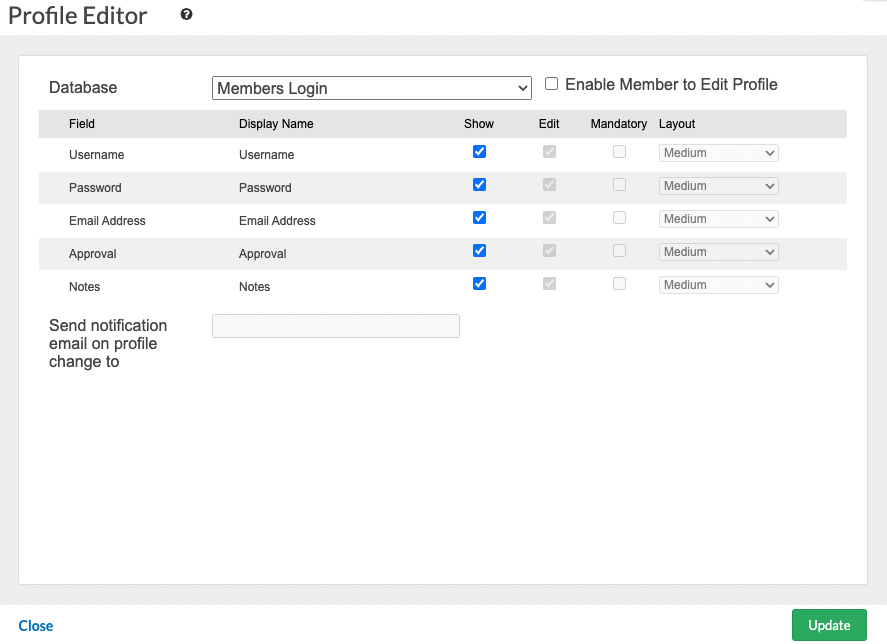
- Database: Select the Database where the members data is stored.
- Enable Member to Edit Profile: Allow members to edit their profile information.
- Display Name: Title of the field that will be displayed to the member.
- Show/Edit: Specify whether the member can see/edit the field.
- Layout: Select a layout for the field.
- Send notification email on profile change to: A notification message will be sent to the specified email address every time a profile is being edited.
Once you add the Profile Editor on your site, members will be able to view/edit their profile information only if they are logged-in from the Members Login element.